
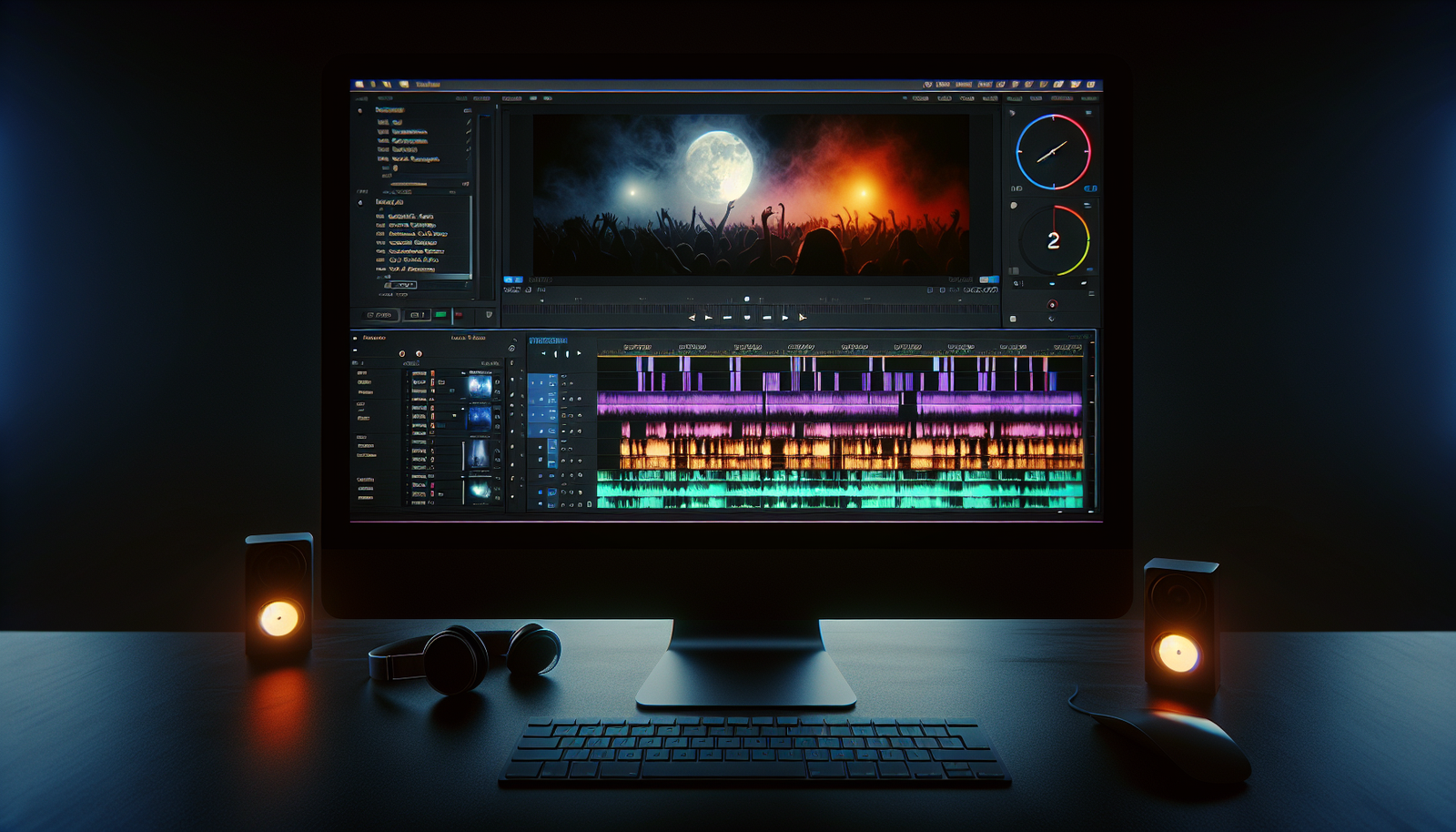
How to Make a DJ Mix Video with Song Titles (Automatic Subtitles)
Introduction
The best DJ mix videos on YouTube have one thing in common: they show you exactly what song is playing in real time. Song name, artist, and timing — displayed as on-screen text as each track drops. It makes the video more engaging, helps viewers discover music they love, and keeps people watching longer.
The good news: you don't need to manually type timestamps for every track. Here's how to do it automatically.
The Tool You Need: An SRT File
An SRT (SubRip Text) file is a standard subtitle format supported by every major video editor — DaVinci Resolve, Premiere Pro, Final Cut Pro, CapCut, and more. It's a plain text file that contains:
- A sequence number for each subtitle
- A start and end timestamp
- The text to display (in this case, the song title and artist)
A typical SRT entry looks like this:
```
14
00:23:45,000 --> 00:26:30,000
Strings of Life — Derrick May
```
Generating this file manually for a 20-track mix would take hours. 45 Mix Trackr does it automatically.
Step 1: Generate Your SRT File
1. Go to 45mixtrackr.com and upload your mix file (MP3, MP4, WAV, or M4A)
2. The tool identifies every song using audio fingerprinting
3. Once processing is complete, download the ZIP file
4. Inside the ZIP you will find your SRT subtitle file, with every recognized track timed to the second
The whole process takes 2–5 minutes for a typical hour-long mix.
Step 2: Import the SRT into Your Video Editor
DaVinci Resolve:
1. In the Edit timeline, go to File → Import → Subtitles
2. Select your .srt file
3. A subtitle track appears in your timeline — drag it to align with your video
4. Customize the font, size, and position in the Inspector panel
Adobe Premiere Pro:
1. Go to File → Import and select your .srt file
2. It appears in your Project panel as a caption file
3. Drag it to the timeline above your video track
4. Adjust styling in the Essential Graphics panel
Final Cut Pro:
1. Go to File → Import → Captions
2. Select your .srt file
3. Captions appear connected to the video in the timeline
CapCut (mobile/desktop):
Use the Text tool and add each song title manually at the right timestamps, using your SRT file as a reference guide.
Step 3: Style Your Song Titles
Now that your song titles are in the timeline, style them to match your brand:
- Position: Lower third (bottom-left) is the most common for music videos
- Font: Clean sans-serif fonts like Helvetica, Inter, or Montserrat read well
- Duration: Each subtitle displays for the full length of the track — already set correctly in the SRT
- Animation: A subtle fade-in makes each song title feel like a natural reveal
Tips for the Best Results
- Upload high-quality audio — WAV or 320kbps MP3 gives the best fingerprinting accuracy, which means more tracks recognized and more subtitle entries
- Check the SRT before importing — open it in a text editor and scan for any obvious misidentifications
- For tracks not recognized: manually add them to the SRT file using the same timestamp format as the other entries
Conclusion
Adding song titles to a DJ mix video is one of the most effective ways to grow an audience — viewers who can identify every track are far more likely to follow and share. With 45 Mix Trackr generating your SRT file automatically and any major video editor importing it in seconds, there is no reason to skip this step.
Identify your DJ mix instantly
Upload any audio or video mix and get a full tracklist with song titles, artists, and album covers in minutes.
Try 45 Mix Trackr →